
Scenic Launcher

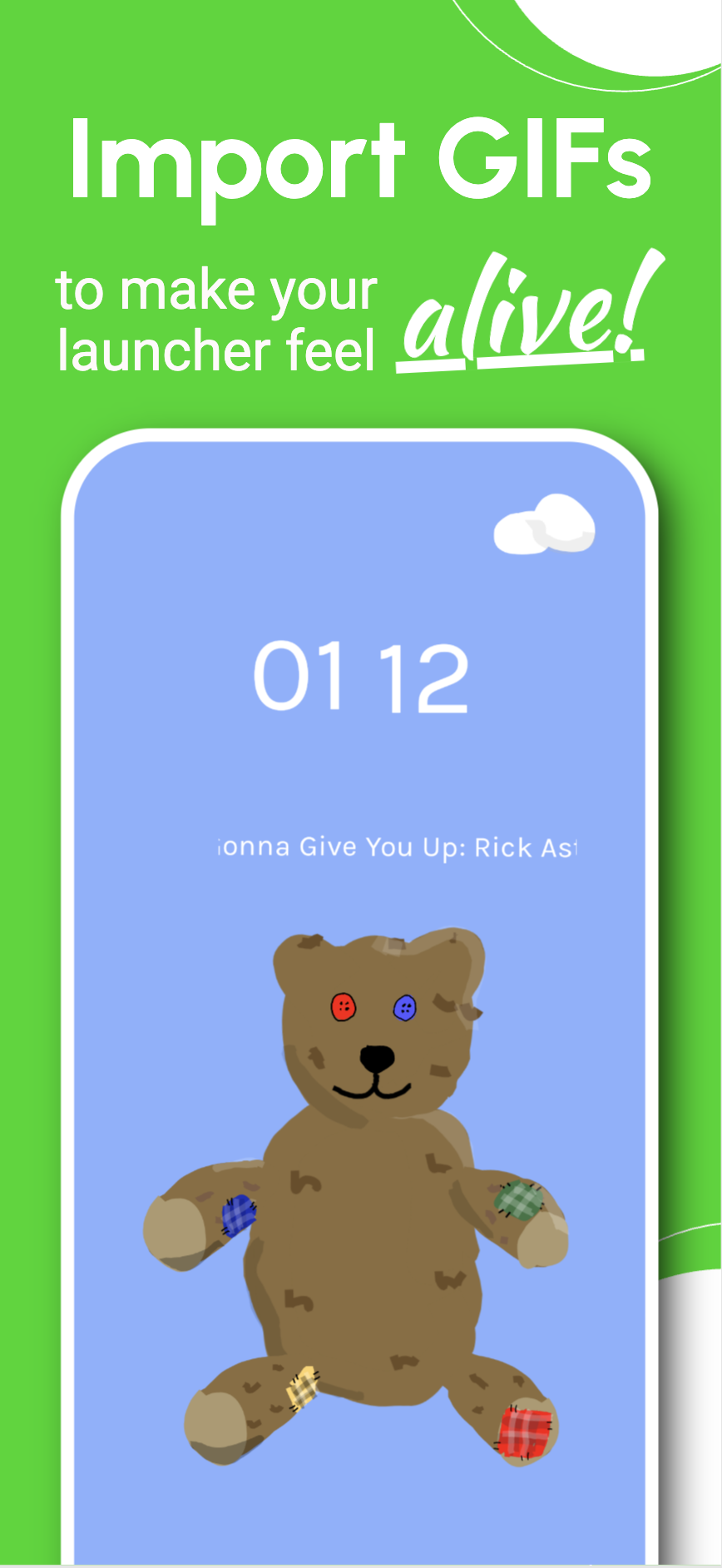
A super custom and creative launcher application. Replace all app icons with images. Import image's or draw your own. Use GIF's or Sprite Sheets in the app to create custom icons or custom widgets and use them in place of app icons to make your home screen feel seemless.
Documentation
Home screen
Long press on background to enter "Edit mode"
Long press on a widget to edit or move it
Swipe down to view the all app list
Swipe left/right to view left and right layouts if they are set (premium only)
To open settings, swipe down to access the all applications list, scroll all the way to the bottom. Your settings icon will be shown at the end of the list
Settings
Use the chevron at the top to expand or collapse the additional settings
Use system wallpaper: toggle this setting on to hide background colours and show the system wallpaper instead, this change will apply to all layouts.
Snap to grid: Enable this to make movement of widgets more rigid making it easier to keep them in-line
Clock and Time: Change the time to define what is "Morning", "Day", "Evening" and "Night". These definitions are used for setting the background colour and changing when "Time of day" widgets will change which image they use
Layout Settings
Tap on a layout to edit it.
Tap the three bars below the layout to set it as active. The bars on the left and right will set it as the left / right layout (premium only).
The reload button will refresh all the default layouts to their original state, this will undo any changes you made to them. It will not affect any layouts other than the default ones.
To export a layout, open it in the settings and find the export button at the top of the page.
Edit Layout
Change the layout name at the top.
Use the + button to add a new widget, a widget will be any application you want on the home screen or more custom widgets like media player / weather.
Tap on an existing widget to edit it.
Swipe on an existing widget to delete it.
Tap on the images for "Background", "Settings", "List Back" or "Highlight" to change them.
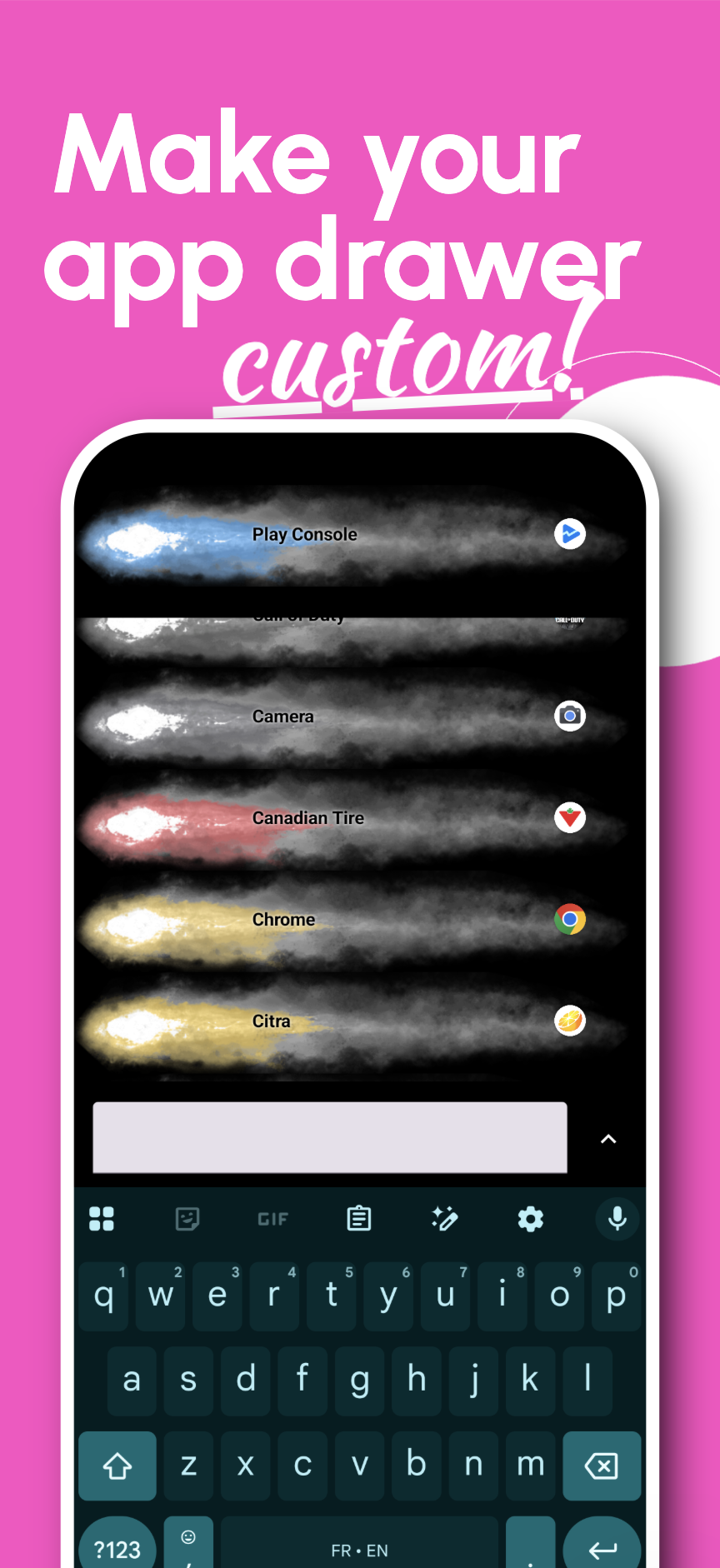
"List Back" or "Highlight" are used for the all application list, "List back" will be the background and "Highlight" will be in the foreground and will be tinted to match the colour of the application.
Tap on the colour dots to change the background colours for each time of day, these will be unused if you enable "Use system wallpaper" on the main settings page.